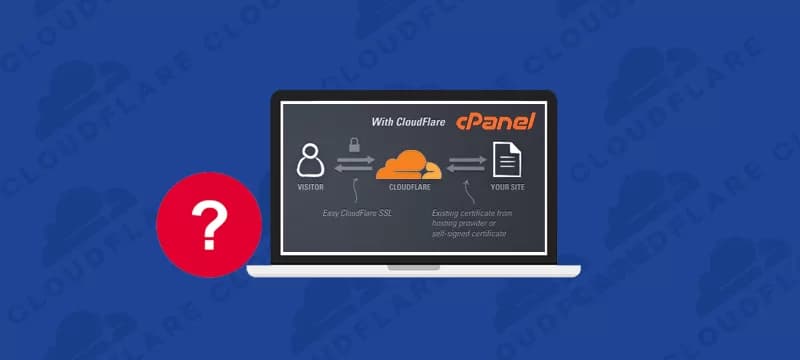
The old Cloudflare cPanel plugin is deprecated. If you cannot find its icon or its activation screen fails, do not assume that your hosting account is broken or try to reinstall the legacy plugin from an old tutorial.
Cloudflare announced the end of support for its Host and Reseller APIs on November 1, 2022, including the legacy cPanel integration. Its plugin repository also marks the software as deprecated and unmaintained. The retired integration is not evidence of a currently included WebCare360 feature.
Find who controls the existing Cloudflare zone
For a site already using Cloudflare, identify the account or partner arrangement that manages it. Use the Cloudflare dashboard and the account's documented recovery process when you have direct access. If a hosting partner manages the zone, ask that partner how changes and access are handled. Do not create a second account and change nameservers just because a cPanel button is missing.
Keep the hosting account, domain registrar and Cloudflare zone separate in your access record. They can be administered by different people. Access to one does not establish ownership or control of the others.
Use the supported management path
Review existing DNS records and proxy settings through the current management interface. If your website is working, avoid unrelated DNS changes while resolving plugin access. Record a specific error and the affected hostname when requesting help; do not include passwords or API secrets in public messages.
For a new Cloudflare setup, follow Cloudflare's current onboarding instructions. Installation or removal of server software belongs to an authorized server administrator, not an ordinary shared-hosting user. This guide does not provide a remote installation script or promise that all hosting plans include a replacement plugin.
If zone access is unclear, identify the Cloudflare account owner and the authoritative nameservers before requesting a change. Confirm any hosting-side assistance against your service agreement.